
The pipeline screen
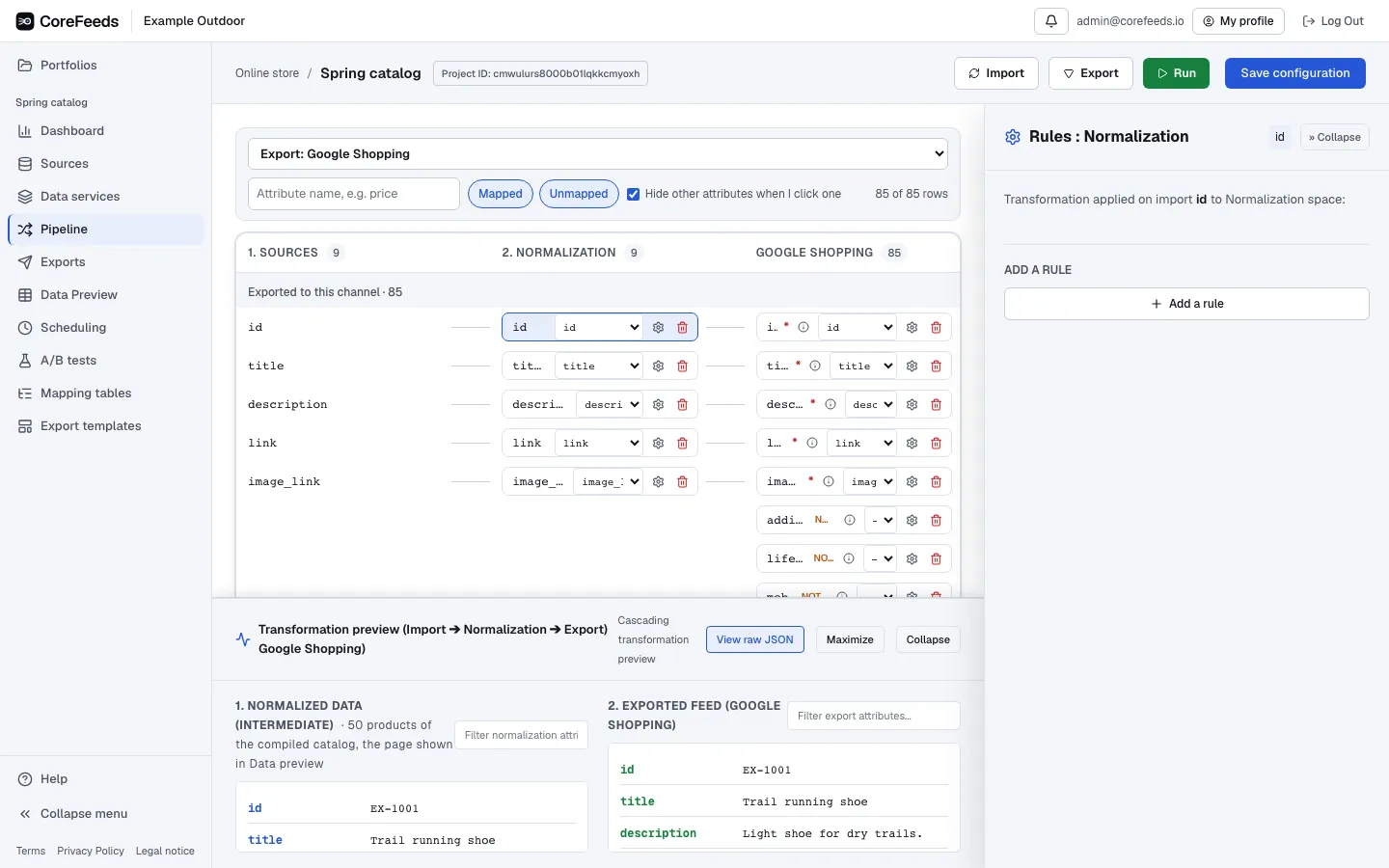
Pipeline is where you build a feed. Each row of the board shows, from left to right:
- a source column (from your files);
- the normalization attribute it feeds;
- the export attribute of the channel chosen above the board.
Lines join them. When a column feeds several attributes, its line branches out, one row per attribute.
Find your way
Section titled “Find your way”- Filter attributes: type part of a name, for example
price. - The chips Mapped, Unmapped, Main source and Additional sources show or hide rows.
- Rows come in groups: attributes exported to this channel, then those not exported to it, computed attributes (no source column, marked ƒx), and source columns not used.
- Each attribute shows its number of rules, or static for a single fixed value.
- Click an attribute to follow its path from source to feed: the other rows are hidden, or faded if you untick Hide other attributes when I click one. Show all brings everything back.
Add and link attributes
Section titled “Add and link attributes”- Add normalization attribute, at the end of the middle column. A source column with the same name is linked automatically; otherwise pick one in its Source: menu, or None (computed attribute) for a value built only by rules.
- Add export attribute, at the end of the right column, then choose its normalization attribute in its Normalization: menu.
- Renaming a normalization attribute updates every channel that uses it.
Preview
Section titled “Preview”The panel at the bottom shows, for a few products, the value at each stage: normalized, then exported. It follows your edits as you type, before you save. Data Preview, in the sidebar, shows the whole table page by page, with the products that exclusion rules leave out struck through.
The preview reads the catalog as last built (by an import or a run), not fresh data from your sources.
Make room
Section titled “Make room”- Collapse menu, at the bottom of the sidebar, keeps icons only.
- Collapse at the top of the rules panel hides it; the tab on the right edge brings it back.
- Collapse on the preview panel hides it.
Save configuration saves the normalization and every channel you changed, all at once. An orange dot on the button means unsaved changes; leaving the project asks you first. If someone else saved meanwhile, your save is refused and a banner says who: your edits stay on screen so you can copy them, and Reload shows their version.