
How rules work
A rule changes the value of one attribute for every product: it fixes a price, translates a category, removes HTML from a description, or leaves out the products that should not be published.
Two levels of rules
Section titled “Two levels of rules”- Normalization rules run once, on the whole catalog. Use them for what every channel needs: clean prices, tidy titles, one spelling per colour.
- Export rules run for one export channel only. Use them for what a single partner asks for: Google’s category ids, Meta’s
in stockwording, a channel without gift cards.
A product left out in Normalization is left out of every channel; left out in an export, of that channel only.
Add a rule
Section titled “Add a rule”- Open Pipeline and click an attribute: its rules open in the panel on the right.
- Click Add a rule. Type a few letters to search (for example
price), then click the rule. - Fill in its settings. The preview at the bottom of the screen shows the result on real products as you type.
- Click Save configuration in the top bar.
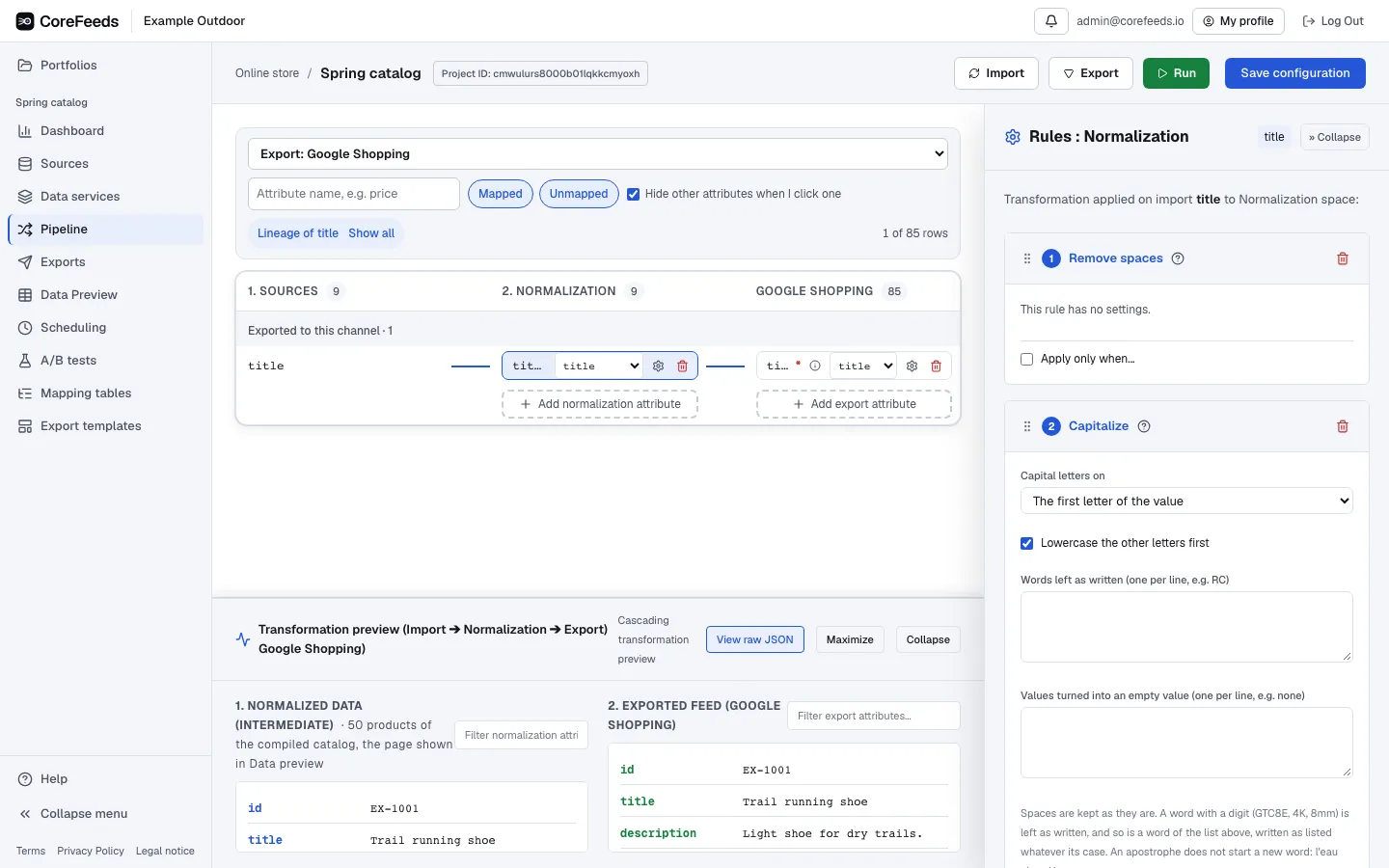
Order matters
Section titled “Order matters”Rules run from top to bottom: each one starts from the value the rule above produced. Drag a rule by its handle to move it. For example, Clean text before Capitalize, so the capitals are put on the clean text.
An attribute takes at most 200 rules, and no rule makes a value longer than 100,000 characters: a replacement that would is skipped and the value left as it was, and a value that grows past it is cut. Both are noted in the run log.
Apply a rule to some products only
Section titled “Apply a rule to some products only”Every rule except Comment has an Apply only when… box at the bottom of its settings. Tick it and add one or more conditions on a column, for example brand equals AdditizRC. The rule then runs only on the products that match; on the others it does nothing, and an exclusion rule keeps them.
- Combine: all conditions (every one must hold) or any condition (one is enough).
- Comparisons: equals, does not equal, contains, does not contain, matches a regular expression, is empty, is not empty, greater than, less than (the number of the value, read like the math rule does:
12,90 EURreads as 12.9,1.299,00 EURas 1299,€12as 12; a value with no number or two numbers never matches), longer than and shorter than (in characters). - Text comparisons ignore case and the spaces around the value. A column a product does not have reads as empty.
- Conditions read the same columns as the rule’s dynamic column: the imported columns in Normalization, the normalized attributes in an export.
- Up to 20 conditions per rule.
For example: a discount with Math on one category only, condition = refurbished with Fixed value when the title contains “refurbished”, or Skip if empty on the image only for the products of a given channel category.
Choose the right rule
Section titled “Choose the right rule”- One fixed text for every product: Fixed value.
- A missing value to take from another column: First non-empty.
- A value too long for a channel: Cut to a length. One part of a list or a category path: Keep part of a list.
- Tracking on the product links of a channel: Set a URL parameter. GTINs that may be wrong: Check a GTIN.
- Several attributes packed in one JSON column: Extract from JSON.
- Dates Google refuses (05/11/2026, a timestamp): Format a date.
- A few values to translate: Map values. Many values, or a table shared by several projects: Mapping table.
- A pattern rather than one product: Regex replace or Math.
- Products that must not be published: the Exclude rows rules, such as Skip if empty.