
Create an account
Anyone can create a CoreFeeds account with an organization of their own. If an administrator invited you, use the link in your invitation email instead.
Sign up
Section titled “Sign up”- On the sign-in page, click No account yet? Create one.
- Fill in your name, your work email, a password (at least 12 characters, not one known to have leaked) and the name of your organization.
- Tick the box accepting the Terms of Service, the Privacy Policy and the Data Processing Agreement, then click Create my account.
- Open the Confirm your email address email and click its link (valid 24 hours), then sign in.
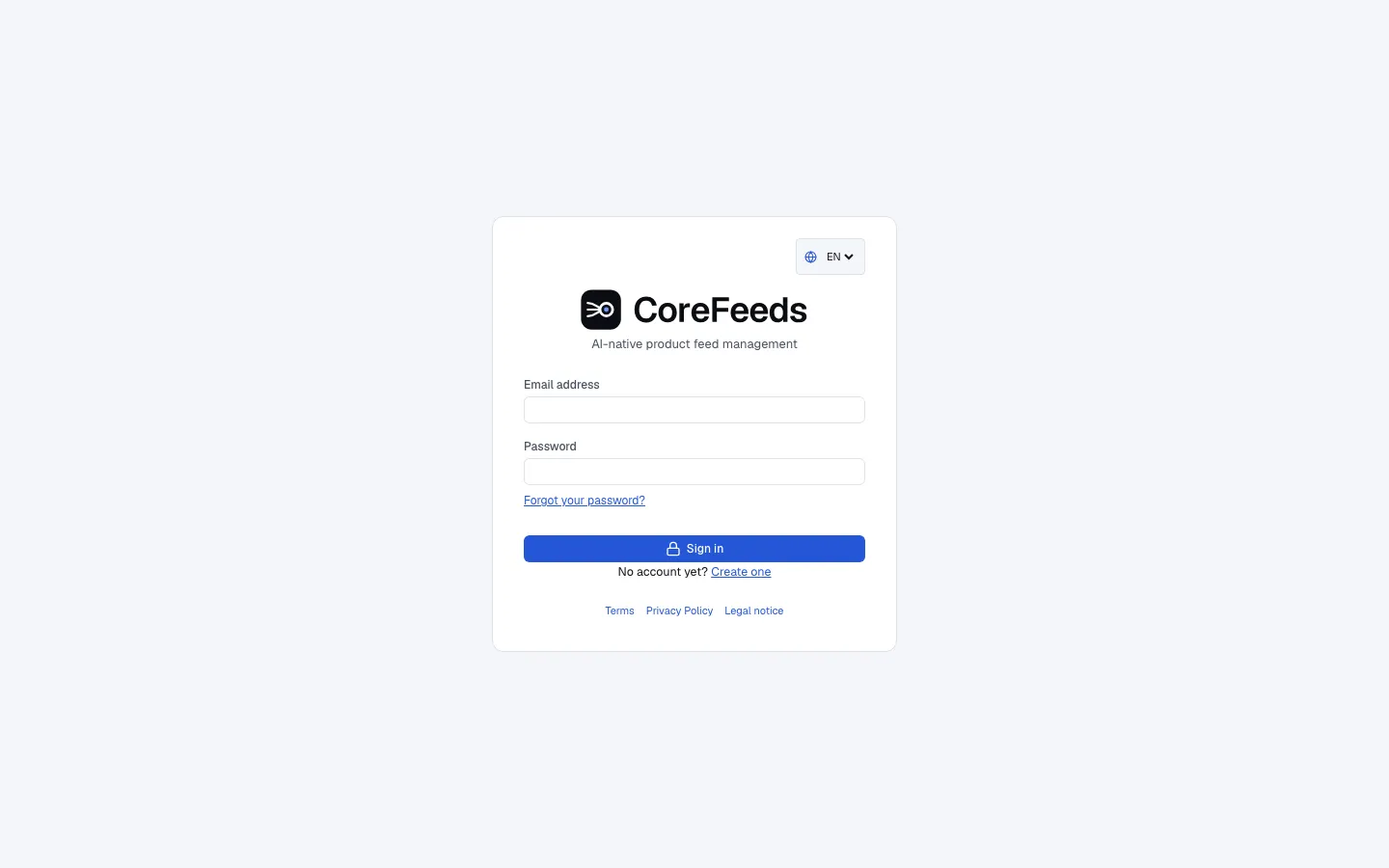
You become the owner of the new organization. Continue with Google does the same with your Google account, without a password or a confirmation email.
Waiting for approval
Section titled “Waiting for approval”Every new organization is checked by the CoreFeeds team. Until then, the app shows Waiting for approval: you can manage your profile, but nothing runs. You get an email when the team decides.
If an organization with a similar name already exists, the waiting screen asks Is your company already on CoreFeeds?. Ask to join sends a request to its owner; if they accept, you join their organization instead.
If you never confirm your email
Section titled “If you never confirm your email”An account whose email address is not confirmed within 7 days is deleted automatically, with the organization created at sign-up. You get no email about it: sign up again if that happens.
Forgotten password
Section titled “Forgotten password”On the sign-in page, click Forgot your password? and enter your email. The link it sends is valid one hour. Every session of the account is signed out when you choose a new password.
If sign-up fails every time
Section titled “If sign-up fails every time”Some company networks block account creation on apps the company has not approved: the page then says “Your account could not be created” every time. Ask your IT team to allow *.corefeeds.io, or create the account from another network, such as your phone’s mobile data, then sign in from work as usual.